Sunday, December 13, 2009

I Know You Want Me

I wrote this tutorial on Dec. 13th, 2009. This is my own creation, using a Template by Elegantly Wasted and Scrap Kit by Angels Designz. Please not copy this tutorial in any way.
◘
Supplies Needed:
♦PSP
♦Tube of Choice. I used the Artwork of ©Keith Garvey. You can purchase a License and the Tube at My PSP Tubes (do not use without the license) HERE
♦PTU Scrap Kit called Paparazzi by AngelsDesignz HERE
♦FTU Template EW0021 at Elegantly Wasted HERE
♦Word Art by Me HERE
◘
Notes:
This tutorial assumes you have a working knowledge of PSP.
◘
Lesson:
Open Template, Duplicate, delete copyright.
~
Resize Canvas (image> Canvas size) 725x725.
~
Floodfill white bg layer with more white.
~
Layer 10, Selections>Select All> Float> Defloat. Copy Paper6, Paste as a New Layer, Resize 50%, Selections>Invert, Delete. Ctrl + D. Add DS -2, -2, 50, 10.00, Delete Layer 10.
~
Layer 9, Selections>Select All> Float>Defloat. Copy Paper4, Paste as a New Layer. Selections>Invert, Delete. Ctrl + D. Add DS and Delete Layer 9.
~
Layer 8, Selections> Select All>Float>Defloat. Copy Paper18, Paste as a New Layer. Resize 50%. Selections>Invert, Delete. Ctrl+D. Add DS and Delete Layer 8.
~
Layer 6, Selections>Select All> Float>Defloat. Copy Paper12, Paste as a New Layer. Resize 70%. Selections> Invert, Delete. Ctrl+D. Add DS and Delete Layer 6.
~
Merge Down Layer 2 and 3. Click inside, both black rectangles. Copy Paper17, Paste as a New Layer. Resize 70%. Selections>Invert, Delete, Ctrl+D. Add DS and Delete Layer 3.
~
Delete Text & Text 2 Layers.
~
Copy Camera2, Paste as a New Layer. Place in the Middle of black star backgrounds, Add DS.
~
Copy High Heel, Paste as a New Layer, resize 50%. Add DS, place in Left bottom corner.
~
Copy Perfume, Paste as a New Layer, resize 30%, add DS. Place over High Heel.
~
Copy Word Art, Paste as a New Layer.
~
Copy Tube, Paste as a New Layer, over Left Black star Bg. Rize if Needed, Add DS.
~
Using Selection tool, set on Rectangle, draw around Right Black Star Bg.
~
Use Tube again. This time do not resize. Place over Right Black Star Bg. Selections>Invert, delete, Ctrl + D. Change to Luminance (L).
~
Add Name and Copyright Info.
~
Merge Visible and Crop
~
Resize 400x300 px
~
Save .png
Thank You for trying my Tutorial.

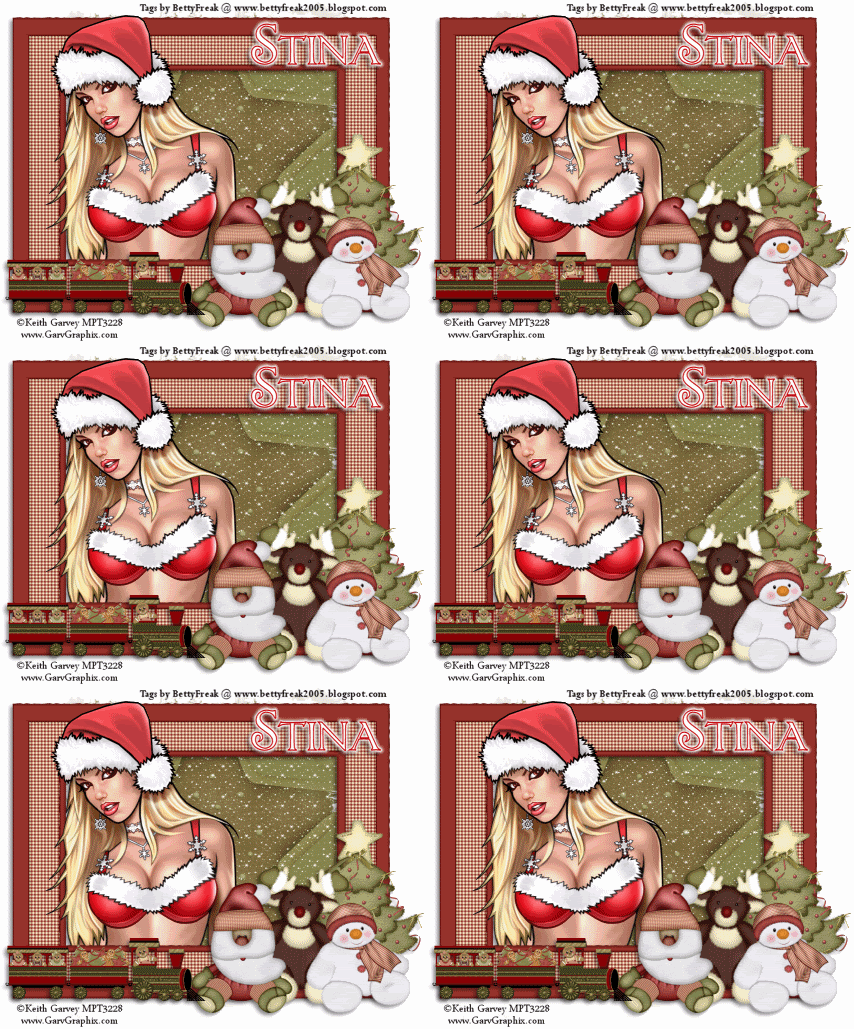
Monday, November 30, 2009

Lazy Daze

This is a Tag only, no Tutorial. The kit is by Designs by Stina, called Lazy Daze.
You can find this kit @ Designz by Stina Again!!

Cinnamon and Cookies

This Tag was made with a kit, called Cinnamon and Cookies by Designs by Stina.

No Tutorial for this Tag. Kit can be found at Designed by Stina...again!

Saturday, November 21, 2009

Autumn Beauty


This Tutorial was Written on Nov. 21, 2009. This is my own creation using, the artwork of ©Rion Vernon and Scrapkit by Schnegge @ Dazzling Scraps called Autumn Romance. Please do not copy this tutorial in anyway.


Supplies Needed:


♦PSP, I am using V.9 (but any version will do)

♦ Tube of Choice, I am a PTU Tube by Rion Vernon at CILM (do not use without license) HERE

♦FTU Template #37 by Lacarolitas HERE

♦Mask that I will supply (if this is yours, please let me know I will give proper credit) HERE

♦PTU Scrap Kit called Autumn Romance by Schnegge @ Dazzling Scraps HERE


Notes:


This tutorial assumes, you have a working knowledge of PSP.


On to the Lesson:


~Open Template. Duplicate it (Shift + D), close orginal, delete copy right, background and flowers.


~Add a New Raster Layer and send to the bottom and floodfill with white.


~On Raster 1. Selections> Select All> Float> Defloat


~Add a New Rater Layer


~Copy Paper08 and Paste Into Selection, Selections> None and delete Raster 1.


~On Raster 5 Selections> Select All> Float> Defloat.


~Copy Paper 12 and Paste as a New Layer. Selections> Invert, delete. Select None.

Add DS 4, -5, 60, 10.00. Delete Raster 5.


~On Raster 4 Selections> Select All> Float> Defloat.


~Copy Paper06 and Paste as a New Layer. Selections None. Add DS, delete Raster 4.


~On Raster 3, Selections> Select All> Float> Defloat.


~Copy Paper20 and Paste as a New Layer. Selections> Invert, delete. Selections> None. Add DS and delete Raster 3.


~On Raster 2, Selections> Select All> Float> Defloat.


~Copy Paper13 and Paste as a New Layer. Selections> Invert, delete. Selections> None. Delete Raster 2.


~Copy Tube and Paste as a New Layer. Resize if needed. I resized mine 65%. Add DS.


~Copy Paper09 and Paste as a New Layer. Move this layer right above Raster 8. Add Mask. Layers> Load/Save mask> Load Mask from Disk, Merge Group.


~Copy Elements of Choice, you can use mine for example. Add DS to All.


~Add name & Copyright, crop, merge visible, resize with settings below:


~Save as a .png


Monday, November 2, 2009

Forever Autumn

I wrote this Tutorial on Oct. 31, 2009. This is my own Creation, using a scrap kit by Classie Creations. Please do not copy this tutorial in anyway. Thank You.
Supplies Needed:
♦ PSP, I am using V.9 (any newer version will do)
♦PTU scrap kit by Classie Creations called Samhain (full Size) HERE
♦Tube of Choice. I am using the beautiful Artwork of ©Joel Adams (do not use without purchasing a license) HERE
♦FTU Template by Vix. Template set 21-25 HERE
♦FTU Mask, I will supply (if this is your creation please let me know so I can give proper credit) HERE
Notes:
This tutorial is written with the assumption, you have a working knowledge of PSP.
Lesson:
>Open Temp, delete copyright and chande the canvas size to 800x800.
>On background layer un-x and floodfill with white.
>Copy paper6 and Paste as a New Layer, above the background layer.
>Add Maski WynterMask1903087, Merge Group and resize 80%, Add Drop shadow.
V3, H-3, O 49.00, B 10.00
>Delete both leaves layer.
>Go to your frame fill layer and copy paper7. Go to Selections> Select All> Float> Defloat. Paste your paper as a New Layer, resize 70%. Selections> Invert, delete. Selections>None. Add Drop Shadow. Delete frame fill layer.
>On Frame Fill Sides. Selections>Select All> Float> Defloat. Copy paper1 and Paste as a New Layer. Selections> Invert, delete. Selections> None. Add Drop shadow.
Delete frame fill sides.
>On Autumn Word Art. Selections>Select All> Float>Defloat, copy paper5 and Paste as a New Layer.
>With Autumn still selected move paper5, above the Autumn Glow layer. Selections> Invert, delete. Selections> None, add drop shadow.
>Drop shadow the word forever & frame layers.
>Add Embellishments of choice, resize if needed. Add drop shadow to each. Use my for example.
>Copy Tube of choice and Paste as a New Layer, resize if needed, add drop shadow.
>Duplicate this layer and resize to a bigger size, then the orginal.
>Move below Raster 2 layer
>On Raster 3 layer, Selections> Select All> Float>Defloat. Selections> Invert, Delete. Change this fromnoraml to Hard Light in layer palette. Add Drop shadow.
>Add name & copyright info.
>Crop and Resize to 400x400 px.
>Merge Visible
>Save as .png
Viola Your Done,
Thank You for trying my tutorial.

Friday, October 16, 2009

Welcome to Your Nightmare

This tutorial was written on Oct. 16th, 2009. This is my own creation, using Stina's: Come Out and Play @ Dazzling Scraps. Please do not copy this tutorial in anyway.
Supplies Needed:
♦PSP, I am using V.9 (any newer version will do)
♦Animation Shop
♦Tube of Choice (Can not provide tube used
♦PTU Scrap Kit by; Designed by Stina @ Dazzling Scraps HERE
♦FTU Plugin Almathera's Lighting Maker HERE
Notes:
This Tutorial assumes you have a working knowledge of PSP and AS.
On to the Lesson:
~Open a New 800x800, Transparent Image, Flood fill with white.
~Copy DBS flower01 and Paste as a New Layer.
~Copy DBS frame01 and Paste as a New Layer, resize 70%.
~Using your Magic Wand, click inside the frame.
~Selections> Modify> Expand 10.
~Copy DBS Paper21 and Paste as a New Layer, resize 60%
~Selections> Invert, delete. Selections> None. Move this layer below your frame.
~Copy Tube and Paste as a New Layer, on top of the frame. Duplicate this once and move the duplicated layer below the frame.
~Back on Your orginal layer, erase everything anove the frame. Do the same to the duplicated layer. It will look like its under the frame at the bottom.
~Copy DBS GrimReaperScroll and Paste as a New Layer, resize 30% smartsize. Place on the left bottom of frame.
~Copy DBS WitchesBrew and Paste as a New Layer, resize 60%. Place on the left bottom of frame.
~Copy DBS MoonwithBats and Paste as a New Layer, resize 30%.
~Add Drop shadow of choice to all elements (I used 4, 4, 45, 5.00, Black), except: frame, tube and paper.
~Add Name and copyright info.
~If not animating, crop and resize to 423x343 px and save as a .png.
Animation:
~Set your forground and background to null, Background and Fill to white.
~Add Almathera Lighting Maker to Paper Layer only, with the folloeing settings:


1. Copy Merged and take to AS and Paste as a New Animation.
2. Back to PSP undo Lighting Maker, Add Plugin again, changing the Random.
3. Copy Merged take to AS and Paste after Current Frame.
4. Do the exact same as you did in step 2 and 3.
~You will now have 3 frames.
~In AS, click on your first frame. Edit> Select All. Animation> Frame Properties, change to 30. Resize 60%
~Save and Your Done
Thank You for Trying my Tutorial. Would like to see your results

Wednesday, August 5, 2009

It's A Fairy's Life

I wrote this Tutorial on August 5th, 2009. This is my own cration. Any resemblence is only coincidental. Please do not copy this tutorial in anyway.


Supplies Needed:

♦ PSP I am using V.9 (but any newer version will do)

♦ Template 15 by Babes Designz HERE

♦ Scrapkit and Fairy's Called Odelina Part 1 by Kittie's Sinful Designz HERE

♦ Word Art by Me HERE


Notes:

This tutorial is assumes you have a working knowledge of PSP.


On to The Lesson:

♦Open Template and duplicate and delte the orginal.

♦Delete copyright.

♦Merge down the flower frame with circle fill.

♦ Selections> Select All> Float> Defloat

♦ Copy Paper 1 and Paste as a New Layer. Resize 70%. Selections> INvert and delete, CTRL + D. Add Drop shadow 0, 0, 60, 6.00. Black. Delete circle fill.

♦ Go to the rectangles layer. Selections> Select All> Float> Defloat.

♦ Copy Paper 12 and Paste as a New Layer, resize 70%. Selections> INvert and Delete, CTRL+D. Add dropshadow, Delete rectangles.

♦ Go to frame fill layer, Selections, Select All> Float> Defloat.

♦ Make a New Raster Layer
♦ Copy Paper 13 and Paste into Selection, CTRL + D, Delete Frame fill.
♦ Go to frame, Selections> Select All> Float> Defloat
♦ Copy Paper 14 and Paste as a New Layer, Resize 80%.
♦ Selections> Invert and delete, CTRL + D. Add drop shadow 3, 3, 60, 6.00, Delete frame layer. Delete dotted Line.
♦ On your flower layer, copy frame 2 and Paste as a New Layer, Resize 50%, Add drop shadow 0, 0, 60, 6.00.
♦ Click left side of frame. Use Your selections tool, set on rectangle and outline, just a bit over the frame.
♦ Copy Odelina 1 and Paste as a New Layer, resize 70%. Selections> Invert and delete, CTRL + D, Move below the frame. Add drop shadow 3, 3, 60, 6.00.
Do the same with the right side of the frame, but using Odelina 3 and Resize 60 %.
♦ Back on the top layer. Copy doodle and Paste as a NEw Layer.
Place it so it looks like it's coming out of the left side of the frame. Add Drop shadow.
♦ Copy Odelina 2 and Paste as a New Layer, position were you like and add drop shadow.
♦ Copy Fairy dust trail and Paste as a New Layer, resize 50% and move to the Right under the fairy wings.
♦ Copy Word art and Paste as a New Layer, above the frames.
♦ Add Name and Copyright info., resize 450 x 400. Merge, Save as a .png.
Viola' Your Done, would like to see your results.