Showing posts with label Stina. Show all posts

Wednesday, March 31, 2010

Beautiful Life

This tutorial was written by me, on March 31, 2010. This is my own creation using Stina's Scrap kit Flutterfly Fae. Any resemblence is only coincidental. Please do not copy this tutorial in any way.
◘
§ Supplies §
•
♦PSP 9 and version should do.
♦Mask sg~mask 005 HERE
♦PTU Scrap kit Flutterfly Fae by Stina HERE
◘
§ Lesson §
•
~Open New 800x800 Image, floodfill with white.
~Copy paper 22 and paste. Resize 70% and add mask.
~Layers >Load save/Mask> Load from Disk.
Merge Group.
~Copy Poand 1 and Paste, resize 70%. Add DS of choice - Move to the Bottom of the mask.
~Copy Flutterby Boat & Paste, resize 30%. Place on the water under bridge. Add DS.
~Cpy Flutterfly dust01 and Paste, resize 70%.
~Add Name, copyright info, crop, resize 400x400 and Save as .png.
~Thank You for trying my tutorial.

Sunday, February 21, 2010

You Are Beautiful

This tutorial was written on Feb. 21St. 2010. This is my own creation using scrap kit by Stina "Ladybird Love" and Template by Toxic Desirez.
◘
§ Supplies §
•
♦PSP 9 (any newer version will do)
♦Template 63 by Toxic Desirez HERE
♦PTU Scrap Kit Ladybird Love by Stina HERE
♦Gradient Glow by Alien Skin HERE
♦Font of Choice, font I am using is Scarlet Ribbons
♦Poser Tubes included in the Kit
◘
§ Notes §
•
This tutorial assumes you have a working, knowledge of PSP.
◘
§ Lesson §
•
~Open Temp.
Duplicate
Delete Copyright
Delete Original
~Resize Canvas
Image>Canvas Size
800x800
*Start at Bottom*
•
~ Thin Rectangle
Selections
Select All
Float
Defloat
•
~Copy Paper21 and Paste
Resize 72%
Selections
Invert
Delete
Ctrl + D
Add DS
7, -3, 75, 5.00, Black
Delete Thin Rectangle
•
~Dotted Lines
Selections
Select All
Float
Defloat
•
~Add New Raster Layer
Floodfill #dcc4ad
Ctrl + D
Delete Dotted Lines
•
~Flower
Selections
Select All
Float
Defloat
•
~Copy Paper 04 and Paste
Resize 72%
Selections
Invert
Delete
Ctrl +D
Add DS
Delete Flower
•
~Rectangle
Selections
Select All
Float
Defloat
•
~Copy Paper25 and Paste
Resize 70%
Selections
Invert
Delete
Ctrl + D
Delete Rectangle
•
~Sm. Rectangle
Selections
Select All
Float
Defloat
•
~Copy Paper 28 and Paste
Resize 70%
Selections
Invert
Delete
Ctrl + D
Add DS
0, 0, 75, 5.00, black
Delete Sm. Rectangle
•
~Frame
Selections
Select All
Float
Defloat
•
~Copy Paper 26 and Paste
Resize 70%
Selections
Invert
Delete
Ctrl + D
Add DS
Delete Frame
•
~Dotted Rectangle
Selections
Select All
Float
Defloat
•
~Add New Raster Layer
Floodfill with Black
Delete Dotted Rectangle
•
~Delete Doodles
•
~Words
Selections
Select All
Float
Defloat
•
~Copy Paper01 and Paste
Selections
Invert
Delete
Add DS
Add Gradient Glow
(Optional, this effect can be done with DS using White 0,0, 100, 20.00)
•
~Copy LadybirdLove01 (poser) and Paste
Resize 40%
Add DS 7, -3, 75, 5.00 white
Move to the Left
•
~Copy Rose10 and Paste
Resize 50%
Place above raster layer 3
•
~Copy HeartTree02 and Paste
Resize 50%
Place below the words
Add DS
•
~Copy Different colored lady bugs, love bugs, butterflies and apples
•
*Resizing for Each*
Ladybug, lovebug, loverfly & butterfly 5%
Place all over the leaves of the tree
Apple 10%
Duplicate Apple 4 times and place on leaves.
•
~Add Name and Copyright
Crop
Merge Visible
Resize
Save as .png
Thank You for Trying my Tutorial

Wednesday, January 20, 2010

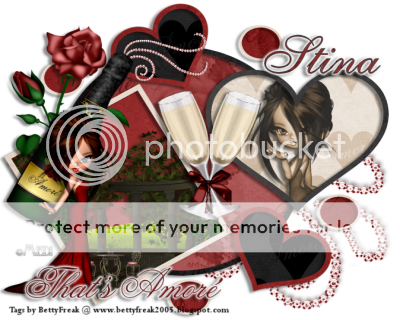
Love Is In The Air

This Tutorial was written on Jan. 20th, 2009. This is my own creation. Any resemblences is only coincidental. Please do not copy this tutorial in anyway.
•
Supplies:
♦PSP
♦PTU Scrap kit by Stina and Posers by ©Medi @ Designz by Stina HERE
♦FTU Template51 (half way down the page) by Ali @ Designs by Ali HERE
♦EyeCandy 5: Gradient Glow
•
Notes:
This tutorial assumes you have a working, knowledge of PSP.
•
Lesson:
~Open Temp51, duplicate and delete copyright.
~Use Freehand Selection Tool, set to Point to Point. Go around Black Rectangle Back.
~Selections>Modify> Expand by 3
~Copy Paper10 and Paste. Selections>Invert, delete Black Rectangle.
~Go to Circle Back and Selections>Select All>Float>Defloat.
~Copy Paper 29 and Paste, resize 60%. Selections>Invert, delete. Ctrl + D, Delete Circle Back.
~Go to Big Heart Back and Selections>Select All>Float>Defloat.
~Copy Paper 12 and Paste, resize 60%. Move into position. Selections>Invert, delete. Ctrl + D, delete Big Heart Back.
~Go to Inside Heart, Selections>Select All>Float>Defloat.
~Copy Paper11 and Paste, resize70%. Move into Position. Selections>Invert, delete. Ctrl + D, delete Inside Heart.
~Go to Small Circle Back. Selections>Select All>Float>Defloat.
~Copy Paper25 and Paste. Selections>Invert, delete. Ctrl + D, delete small circle frame.
~On all the frames. Work on one at a Time. Selections>Select All>Float>Defloat. Use different papers.
*Small Circle =Paper 22, add DS
*Heart Frame = Paper05, Add DS
*Big Heart Frame = Paper01, add DS
*Rectangle Frame = Paper07, add DS
*Circle Frame = Paper16, add DS
~Selections>Invert, delete. Ctrl + D. Delete small circle, Heart Frame, Big Heart Frame, Rectangle Frame and Circle Frame.
~Copy Bling1 and Paste. Resize 70%. Move to the Bottom.
~Copy ChampagneGlass1 and Paste, resize 30%, add DS.
~Copy Champagne and Paste, resize 45%, Free Rotate 30 right. Adjust>Sharpness> Sharpen, Add DS.
~Copy Blong02 and Paste, resize 20%. Move under the champange bottles top at pour spout.
~Copy Rose01 and paste, resize 50%. Move under Chamapgne, add DS.
~Go to Lg. Red Rectangle. Selections>Select All>Float>Defloat.
~Copy Garden02 and Paste, resize 50%. Move Down. Selections> Invert, delete. Ctrl + D, Add DS.
~Go to White heart background. Selections>Select All>Float>Defloat.
~Copy Poser1 and Paste, resize 50%. Selections>Invert, delete. Ctrl + D, add DS.
~Change Blend Mode to Luminance, Opacity to 80.
~Copy Poser2 and Paste, resize 40%. Mirror and Add DS.
~Copy Word Art02 and Paste, resize 30%. Add Gradient Glow and add DS.
~Add New Layer and Floodfill white, move to the bottom.
~Add Copy from Poser Tube
~Add Your name and Copyright into.
~Resize 400x310 px, save as .png.
Thank You for trying my Tutorial.

Monday, November 30, 2009

Lazy Daze

This is a Tag only, no Tutorial. The kit is by Designs by Stina, called Lazy Daze.
You can find this kit @ Designz by Stina Again!!

Cinnamon and Cookies

This Tag was made with a kit, called Cinnamon and Cookies by Designs by Stina.

No Tutorial for this Tag. Kit can be found at Designed by Stina...again!

Friday, October 16, 2009

Welcome to Your Nightmare

This tutorial was written on Oct. 16th, 2009. This is my own creation, using Stina's: Come Out and Play @ Dazzling Scraps. Please do not copy this tutorial in anyway.
Supplies Needed:
♦PSP, I am using V.9 (any newer version will do)
♦Animation Shop
♦Tube of Choice (Can not provide tube used
♦PTU Scrap Kit by; Designed by Stina @ Dazzling Scraps HERE
♦FTU Plugin Almathera's Lighting Maker HERE
Notes:
This Tutorial assumes you have a working knowledge of PSP and AS.
On to the Lesson:
~Open a New 800x800, Transparent Image, Flood fill with white.
~Copy DBS flower01 and Paste as a New Layer.
~Copy DBS frame01 and Paste as a New Layer, resize 70%.
~Using your Magic Wand, click inside the frame.
~Selections> Modify> Expand 10.
~Copy DBS Paper21 and Paste as a New Layer, resize 60%
~Selections> Invert, delete. Selections> None. Move this layer below your frame.
~Copy Tube and Paste as a New Layer, on top of the frame. Duplicate this once and move the duplicated layer below the frame.
~Back on Your orginal layer, erase everything anove the frame. Do the same to the duplicated layer. It will look like its under the frame at the bottom.
~Copy DBS GrimReaperScroll and Paste as a New Layer, resize 30% smartsize. Place on the left bottom of frame.
~Copy DBS WitchesBrew and Paste as a New Layer, resize 60%. Place on the left bottom of frame.
~Copy DBS MoonwithBats and Paste as a New Layer, resize 30%.
~Add Drop shadow of choice to all elements (I used 4, 4, 45, 5.00, Black), except: frame, tube and paper.
~Add Name and copyright info.
~If not animating, crop and resize to 423x343 px and save as a .png.
Animation:
~Set your forground and background to null, Background and Fill to white.
~Add Almathera Lighting Maker to Paper Layer only, with the folloeing settings:


1. Copy Merged and take to AS and Paste as a New Animation.
2. Back to PSP undo Lighting Maker, Add Plugin again, changing the Random.
3. Copy Merged take to AS and Paste after Current Frame.
4. Do the exact same as you did in step 2 and 3.
~You will now have 3 frames.
~In AS, click on your first frame. Edit> Select All. Animation> Frame Properties, change to 30. Resize 60%
~Save and Your Done
Thank You for Trying my Tutorial. Would like to see your results