Wednesday, August 5, 2009

It's A Fairy's Life

I wrote this Tutorial on August 5th, 2009. This is my own cration. Any resemblence is only coincidental. Please do not copy this tutorial in anyway.


Supplies Needed:

♦ PSP I am using V.9 (but any newer version will do)

♦ Template 15 by Babes Designz HERE

♦ Scrapkit and Fairy's Called Odelina Part 1 by Kittie's Sinful Designz HERE

♦ Word Art by Me HERE


Notes:

This tutorial is assumes you have a working knowledge of PSP.


On to The Lesson:

♦Open Template and duplicate and delte the orginal.

♦Delete copyright.

♦Merge down the flower frame with circle fill.

♦ Selections> Select All> Float> Defloat

♦ Copy Paper 1 and Paste as a New Layer. Resize 70%. Selections> INvert and delete, CTRL + D. Add Drop shadow 0, 0, 60, 6.00. Black. Delete circle fill.

♦ Go to the rectangles layer. Selections> Select All> Float> Defloat.

♦ Copy Paper 12 and Paste as a New Layer, resize 70%. Selections> INvert and Delete, CTRL+D. Add dropshadow, Delete rectangles.

♦ Go to frame fill layer, Selections, Select All> Float> Defloat.

♦ Make a New Raster Layer
♦ Copy Paper 13 and Paste into Selection, CTRL + D, Delete Frame fill.
♦ Go to frame, Selections> Select All> Float> Defloat
♦ Copy Paper 14 and Paste as a New Layer, Resize 80%.
♦ Selections> Invert and delete, CTRL + D. Add drop shadow 3, 3, 60, 6.00, Delete frame layer. Delete dotted Line.
♦ On your flower layer, copy frame 2 and Paste as a New Layer, Resize 50%, Add drop shadow 0, 0, 60, 6.00.
♦ Click left side of frame. Use Your selections tool, set on rectangle and outline, just a bit over the frame.
♦ Copy Odelina 1 and Paste as a New Layer, resize 70%. Selections> Invert and delete, CTRL + D, Move below the frame. Add drop shadow 3, 3, 60, 6.00.
Do the same with the right side of the frame, but using Odelina 3 and Resize 60 %.
♦ Back on the top layer. Copy doodle and Paste as a NEw Layer.
Place it so it looks like it's coming out of the left side of the frame. Add Drop shadow.
♦ Copy Odelina 2 and Paste as a New Layer, position were you like and add drop shadow.
♦ Copy Fairy dust trail and Paste as a New Layer, resize 50% and move to the Right under the fairy wings.
♦ Copy Word art and Paste as a New Layer, above the frames.
♦ Add Name and Copyright info., resize 450 x 400. Merge, Save as a .png.
Viola' Your Done, would like to see your results.

Wednesday, July 15, 2009

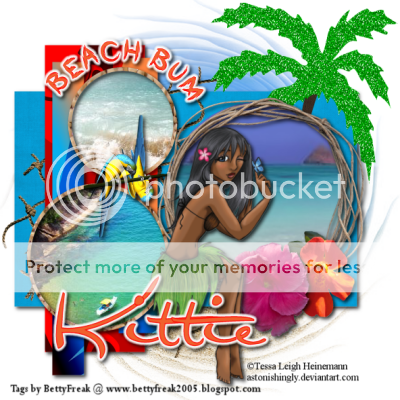
Beach Bum

I Wrote this Tutorial on July 15, 2009. This is my own creation. Please do not copy this tutorial in anyway.


Supplies Needed:
♦ PSP, I am using V.9 (any newer version will do)
♦ PTU Scrap Kit called Sweet Escape Summer by Kittie at Kittie's Sinful Designz HERE
♦ FTU Template 218 by Missy at Devine Intenionz HERE
♦ Three Different Beaches Scenes from Stock.xchng HERE
♦ I am Suppling the Tube by Tessa Leigh Heinemann on DeviantArt, Word Art (That I made, do not claim), and Mask (if this is yours please let me know, so I can give proper credit) HERE


Note:
This Tutorial assumes you have a working knowledge of PSP.


On to the Lesson:

*Open Template and delete the copyright.

*Go to Image> Canvas Size 600x600 pixels. Floodfill background layer white.

*Open Beach Picture from Stock.xchnge and resize 600x600. Copy and Paste as New Layer above background Layer.

*Copy Sand from kit and Paste as a New Layer, position to the bottom.

*Merge these 2 layers together.

*Add mask: Layers> Load/Save Mask> Load Mask from Disk. Merge Group.
*Merge down Rectangle 3, with 2. Now Selections> Select All> Float> Defloat.
*Copy Paper 12 and Paste as a New Layer, resize 15%.
*Selections> Invert, delete. Ctrl + D. Add Dropshadow V & H: 3, O: 80, B: 8.00 and Delete Rectangle 2.
*On Rectangle, Selections> Select All> Float> Defloat.
*Copy Payer 8 and Paste as a New Layer, resize 15%. Selections> Invert, Delete. Ctrl + D. Add Drop Shadow. Delete Rectangle.
*On Large rectangle, Selections> Select all> Float> Defloat.
*Copy Paper 2 and Paste as a New Layer, resize 15%, Selections, Invert, delete, Ctrl + D, add drop shadow. Delete Large Rectangle.
*Make Sure Raster 3 is highlighted, from kit Copy Tropical Tree 3 and Paste as New Layer.
*Resize 50% and Place to the right. Add Drop shadow.
*On circles Copy Frame 2 and Paste as a New Layer, Resize 35%. Place over the largest of the 3 circles. Add Dropshadow.
*On the 2 smaller cirlces use your magic wand and click both circles. Selections> Float> Defloat.
*Copy Paper 14 and Paste as a New Layer, resize 15%. Selections> Invert, delte. Ctrl + D, Add Drop Shadow and Delete Circles.
*Copy flower 7 and Paste as a New Layer, Re size 20 %, place on the roped frame, add dropshadow.
*Copy flower 1 and Paste as a New Layer, re size 15% and Place near the other flower, add dropshadow.
*On frame background (pink circles), use the magic wand and click inside the larger circle.
*Open one of our beach scences and Resize 400 x 400 pixels.
*Copy and Paste as a New Layer, move into place, under the roped frame. Selections> Invert, Delete.
*Do the same with the other to pink circles, one at a time. No need to re size the beach scenes for the smaller circles. Delete the frame background.
*Back on the top layer in your palette.
*Copy Macaw 3 (2 birds) and Paste as a New Layer, re size 20 % and place between the to smaller frames.
*Go to Raster Layer 3 and Copy Net 1 and Paste as a New Layer, re size 60 %, position to the left add drop shadow.
*Add Tube, re size 70%, add drop shadow.
*Add Your name and Copyright info.
Merge Visible
Resize 400 x 400
Save as a .png
Viola' Your Done.
Thank You for Trying another one of my Tutorials.
You can send your results to BettyFreakStyle@yahoo.com

Thursday, June 4, 2009

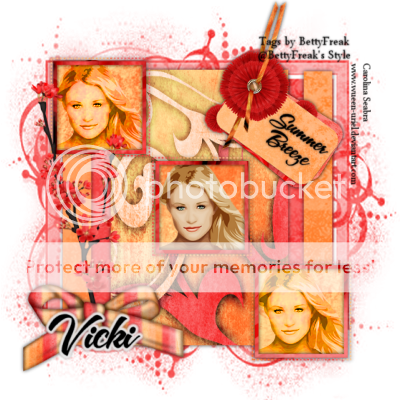
Summer Breeze

I wrote this Tutorial on June 4th, 2009. This is my own creation. Please do not copy this tutorial in anyway.
Supplies Needed:
♦PSP I am using V.9 (but any newer version will do do)
♦FTU Scrap Kit by Juicy Bits called Tequila Sunrise HERE
♦Template 4 deco-Squares by KayXclusive Download 1-12 HERE
♦Mask grungeframe9 by Ginny at BunnyAttic (download 5th one down on the left) HERE
♦I am suppling the wordart and Tube which is copyrighted by ©Carolina Seabra at Deviantart e-mail her Your results to queenuriel@gmail.com (please incude copyright) HERE
Notes:
All settings will remain the same unless otherwise stated. This tutorial aaumes you have a working knowledge of PSP.
On to the Lesson:
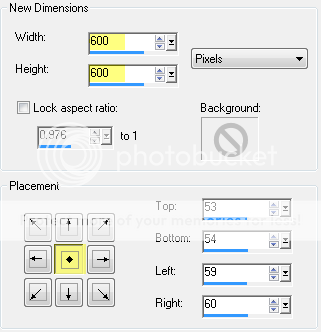
Open Template, duplicate the original and delete. Go to Image> Canvas Size 600x600. Use settings below;

Delete copyright and black background.
Copy Paper01 and Paste as a New Layer and move below the rectangle layer, Resize 80%.
Add Mask, Layers> Load/Save Mask> Load Mask from Disk, Merge Group.
On Rectangle Layer, Selections> Select All> Float> Defloat.
Copy Paper04, Paste as a New Layer, Resize 70%. Selections> Invert> Delete. Hit Ctrl + D to deselect. Add Drop Shadow with the Following Settings (this will be used on all layers).
On center Recatangle, Selections> Select All> Float> Defloat. Make New Raster Layer, make sure this layer is above the Center Rectangle layer.
Copy Paper11 and still on your New Layer Edit> Paste into Selection. Ctrl + D (deselect). Delete Center Rectangle.
Delete R & L Design
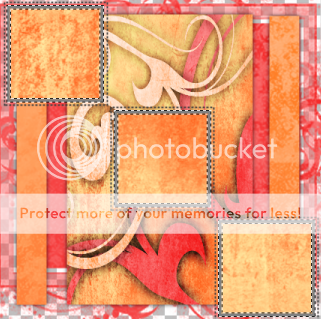
On the Squares use your magic wand, with following settings;
Select inside the Squares
Copy Paper06 and Paste as New Layer, Resize 70%. Selections> Invert> Delete, Ctrl + D
Use the Magic Wand on the Outside of the Squares.
It will look like this;
Copy Paper12 and Paste as a New Layer, Resize 70%. Selections> Invert> Delete, Ctrl + D. Add a Dropshadow to this layer. Make sure to move this layer above raster 3. Delete the layer named Sqaures.

On the Dotted Sqaures Layer, Selections> Select All> Float> Defloat.

Copy Paper16 and Paste as New Layer. Selections> Invert> Delete, Ctrl + D. Add Drop Shadow. Delete the Dotted Squares Layer.

On the Inside Squares (Raster 3). Use your Selection Tool, with the following Settings;

Select just around the middle square.

Copy Tube and Resize 70% and Place just her face in the marching ants. Selections> Invert> Delete, Ctrl + D.

Duplicate this layer 2 times. Move one of each to the other 2 squares. Merge those 2 together.

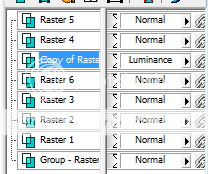
In Layer Palette chane this layer from Normal to Luminance. Like you see in the screen shot;
Add Embellishments, I used Blossom 1 and bow 2, resized 70%. I used tag 2 resized 50%. On the the tag, rotate slighty to the right using your Raster Deform tool. Adjust> Sharpness> Sharpen. Add Drop Shadow to all embellisments.

Place word art on the tag ( there is already a shadow).

Add name and copyright info. Merge Visible, Resize 400x400.

Save as .png

Thank You for trying my Tutorial.

Saturday, May 23, 2009

Summer Fun

I wrote this Tutorial on May 23rd, 2009. This is my own creation. Any resemblence is only coincidental. Please do not copy this tutorial in anyway.

Supplies Needed:
♦PSP I am using V.9 (but any newer version will do)
♦FTU Scrap Kit called Summer Party by Jessica at Scraps by Jessica HERE
♦FTU Plugin MuRa's Copies 1.3 HERE
♦I am suppling the FTU tube by ©Chester Ocampo (Please Credit Tag with copyright, that is on the tube) and the FTU Mask (I found this mask on the web, if it belongs to you please e-mail me so I can give proper credit) HERE


Notes:
All Settings will remain the same, unless otherwise stated. This Tutorial assumes you have a working knowledge of PSP.


On to the Lesson:

Open a New Image 600x600 pixels, Transparent, floodfill White. Rename Background.

Choose paper 8, Edit> Copy and Paste as New Layer, resize 80%.

Add Mask, Layers> Load/Save Mask> Load Mask from Disk> with settings below:

Merge Group. Rename Mask.

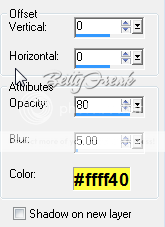
Add Drop Shadow, Effects> Dropshadow, with the settings below to the Mask Layer.


Edit> Copy Glitter 1 & 2 and Paste as New Layer. Merge together.

Edit> Copy sequinflower 5 from kit and Paste as a New Layer. Resize 50%, Adjust> Sharpeness> Sharpen.

Add MuRa's Copies. Effects> Plugins> MuRa's Copies. With settings below.


Add Drop Shadow, Effects> Dropshadow, to the incircled sequin flower, with the settings below (these settings will continue to be used for all other Drop Shadows)

Edit> Copy Sun Frame and Paste as a New Layer. Add Drop Shadow. Rename frame.

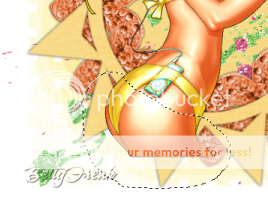
Edit> Copy Tube and Paste as a New Layer, Resize 70%, positon tube slighty to the left. Now we are going to erase the bottom of the tube, so it is under the frame. To do this, select your Selection tool (the lasso), using the freehand selection go around the bottom, like showing in the screenshot below.

Hit Delete, Selections> Select None.

Duplicate your tube, move the duplicate under your frame. Go back to the original tube and use eraser tool and erase everything on top of the frame. Now your tube appears under the frame. Add Dropshadow to the duplicated tube.

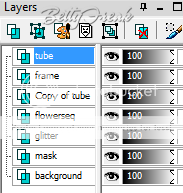
Your Layer Palette should now, look like the one below.


Edt> Copy Flowers and Paste as New Layer, resize 70%, position at the bottom of frame, add dropshadow.

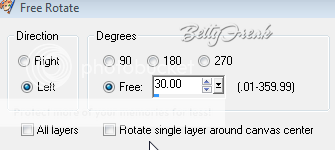
Edit> Copy butterfly and Paste as New Layer, resize 40%. Add Drop Shadow, Effects> Dropshadow. Rotate butterfly, Image> Rotate> Free Rotate with settings below:

Position over the flowers to the right.

Edit> Copy the Beads and Paste as a New Layer, under the butterfly. Add Dropshadow, Effect> Dropshadow.

Add copyright and Name, merge and crop off ezcess background. Resize 400x400 pixels. Save as .png and thats it your done.

Thank You for Trying my Tutorial

Monday, May 18, 2009

Party Girl

Party Girl
I Wrote this Tutorial on May 18th, 2009. This is my own creation. Any resemblence is only coincidental. Please do not copy this tutorial in anyway.
Supplies Needed:
♦PSP I am using V.9 ( but any newer version will do)
♦Animation Shop
♦Tube of Choice, I used the artwork of ©Keith Garvey. You can Purchase a License and the Tube at MPT (do not use without a license) HERE
♦FTU Scrap Kit called Club by Bluey at Bluedreams Designs Blog HERE
♦FTU Template #24 by Babe's Designz HERE
♦FTU Plugin Xero: Fritillary can be found on set 4 HERE
Notes:
All Settings will remain the same unless otherwise stated. This Tutorial assumes you have a working knowledge of PSP and AS
On To the Lesson:
Open your template and copy it, close out the original. On the copied one delete the copyright.
Open paper 8 from the kit and copy it twice, minimize one and close out the original. On the other go to Adjust> Hue & Saturation> Colorize and use the following settings:

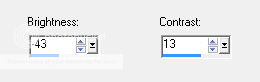
It should now be grey. Go to Adjust> Brightness and Contrast, use the following settings:

You should now have a more darker B&W image.
Back to your template. Make sure the circles is the highlighted layer, in the layer palette. Go to Selections> Select all> Float> Defloat
Edit> Copy the paper you made B&W. Go back to working image. Edit> Paste as a New Layer. Image> Resize 70% (or hold shift + s). Selections> Invert, hit delete on keyboard. Selections> Select None.
Add a Drop Shadow. Effects> 3D Effects> Drop Shadow, use the Settings below (this DS will be used on all parts, except the mask and background)


Delete the Circles in layer palette and Rename the new raster layer Circles.

On Frames Layer, go to Selections> Select All> Float> Defloat

Edit> Copy the other paper (pink checkered), that you minimized earlier. Go back to working image. Edit> Paste as New Layer. Hold down Shift + S, Resize 70%. Selections> Invert, hit delete. Give same dropshadow we used before. Delete Frame layer and name the new raster layer Frame.

On bars layer, Selections> Select All> Float> Defloat. Open paper 5, Edit> Copy, Edit> Paste as New Layer in working image. Selections> Invert, hit delete. Selections> Select None. Give it same dropshadow. Delete bars layer.

On masked layer, Selections> Select All> Float> Defloat. Open paper 3, Edit> Copy, Edit> Paste as New Layer on working image. Selections> Invert, hit delete. Selections> Select None. Delete mask layer and rename the raster layer mask.

Rename layer 1, background.

Go to the top of the layer paletter and have your circles layer highlighted. Go to your tube, Edit> Copy, Edit Paste as new layer, in working image. Resize if you need to.

Got to kit and open Ipod 1. Edit> Copy, Edit> Paste as New Layer. Shift + S, Resize 60%, add dropshadow. Got to Image> Rotate> Free Rotate Right 30.00 (both boxes unchecked), click ok. Postion to the right, bottom corner. Click Adjust> Sharpness> Sharpen.

Open Label 5 from kit. Edit> Copy, Edit> Paste as New Layer. Shift + S, resize 60%. Add a dropshadow. Go to Image> Rotate> Free Rotate this time to the left. Click Adjust> Sharpness> Sharpen. Postion to the left, use mine as a refrence.

Open both music notes for the kit and resize them to 10%. Edit> Copy music note 1 and Edit> Paste as a New Layer. Position to the upper left. Do the same with music note 2. With music note 2 use your Raster Deform tool, in your took car. Turn it slighty to the right. Click Adjust> Sharpness> Sharpen. Merge (merge down) these 2 layers.

Duplicate the merged music, three times for a total of 4. Position them in different areas of the tag.

Now add your Name and Copyright info.

If you do not want to Animate, merge all, Shift+ S and resize 400x400 pixels. Save as .png

If you are going to animate Merge All Layers EXCEPT, circles, frame, bars, mask and background.

ANIMATION:

Duplicate your circles layer2 times for a total of 3. X out the top 2 layers. Have the original layer highlights. Click on Effects> Plugins> Xero> Fritillary. Apply these settings, exccept the Variations make it 10. Do this with the other 2 layers, but change the variations to 20 and 30.


Repeat the same steps for the frame, by duplicating 2 times and adding the Xero Plugin.
Go to mask layer and duplicate that 2 times, for a total of 3. X out the top 2 copies and on the Original layer, Add noise. Go to Adjust> Add/Remove Noise. With the following settings:

Do this with the other 2 layers as well.

Your Layer Palette should now look like the one below:


With the 3 layers (circles, frame and mask) made, keep the 2 duplicated x'd out. Go to Edit> Copy Merged, take over to Animated Shop and Edit> Paste as New Animation.

Back to PSP X out the original and un-X copy 1 on all three, Edit> Copy Merged. Back to Animation Shop, right click on image, Paste> After Current Frame.

Back to PSP to Copy the Last Layer (remeber to close off the one just copied and un x the one you need open). Take to AS and right click on image, Paste after Current Frame.

Hold Down Shift + S and Resize to 400x400

Click on View Animation


Save as a .gif and Viola'

Your Done.

I hope you have enjoyed this tutoria. It is my very first.

Thank You.

Sunday, May 3, 2009

First Blog

I hope to turn this into a Tutorial Blog for PSP. So my blog is under construction. Please Check back soon, once I learn to make this the Best Blog